Browser Mouse Event Frequency Tester (Not Real USB Polling Rate )
Professional mouse sampling rate monitoring and jitter analysis tool (Automatically started)
Move mouse quickly in this area to test
No click required, just move to capture data in real-time
Real-time Log
0 eventsProfessional Mouse Event Frequency Tester Features
Real-time Frequency Monitoring
Real-time display of current mouse event frequency (Hz), helping you understand the actual speed at which the browser processes mouse movement events.
Jitter Analysis
Calculate the standard deviation of event intervals, reflecting the time stability of mouse events. Lower jitter values indicate more stable events.
Maximum Frequency Recording
Automatically record the highest event frequency achieved during testing, helping you understand the best performance of your system.
Average Frequency Calculation
Calculate average event frequency based on historical data, providing more stable performance reference indicators.
Real-time Chart Display
Visualize frequency change trends through dynamic line charts, making it easy to observe performance fluctuations and anomalies.
CSV Data Export
Support exporting complete test logs in CSV format for deep analysis and data preservation.
Frequently Asked Questions (FAQ)
Why does the web test show lower mouse event frequency than the actual USB polling rate?
Mouse events in the browser environment are limited by multiple layers: browser event throttling, display refresh rate synchronization, operating system scheduling, etc. Web pages cannot directly access raw data from the USB HID layer, only through the mouse event interface provided by the browser.
How to get more accurate test results?
1. Ensure the browser window is in the foreground and active
2. Close unnecessary tabs and applications
3. Perform fast, continuous mouse movements within the test area
4. View the detailed user guide for more tips
What is Jitter? Why is it important?
Jitter reflects the stability of mouse event interval times. Low jitter means event intervals are uniform, resulting in smooth mouse movement feeling. High jitter may cause mouse movement to feel stuttering or unstable, even if the average frequency is high.
Why do different browsers show different test results?
Different browsers (Chrome, Firefox, Edge, Safari) use different event processing mechanisms, throttling strategies, and performance optimizations. Chrome usually provides higher event frequency, but specific performance also depends on the operating system and hardware configuration.
How to determine if mouse event performance is normal?
Normal situations:
- 60Hz display: event frequency ≈ 60Hz
- 120Hz display: event frequency ≈ 120Hz
- 144Hz display: event frequency ≈ 120-144Hz
- 240Hz display: event frequency ≈ 200Hz
If frequency is much lower than the display refresh rate, there may be performance issues.
When should I test mouse event frequency?
Recommended testing situations:
- Feeling mouse movement stuttering or not responsive
- Comparing input performance between different browsers or systems
- Evaluating the impact of new displays or graphics cards on input latency
- Diagnosing mouse response issues in web applications
Important Notes About Web Polling Rate Testing
Please read the following notes carefully to correctly understand test results
The "polling rate (Hz)" displayed on this page is NOT equivalent to your mouse's real USB polling rate.
🤔 Why are web test results usually only 60Hz / 120Hz?
In the web browser environment:
- Mouse data is obtained through browser events (mousemove / pointermove)
- Browsers throttle and merge events
- Event triggering frequency is usually synchronized with screen refresh rate
🖥️ Display Refresh Rate vs Web Observable Frequency
| Display Refresh Rate | Web Observable Event Frequency |
|---|---|
| 60Hz | ≈ 60Hz |
| 120Hz | ≈ 120Hz |
| 144Hz | ≈ 120-144Hz |
| 240Hz | ≈ 200Hz |
Even if your mouse hardware is set to 1000Hz USB polling rate,
the web environment cannot directly access real data from the USB HID layer.
Where is the real 1000Hz reflected?
Real USB polling rate exists in:
- • Operating system raw input / HID layer
- • Game engines (like Unreal Engine, Unity)
- • Desktop-level testing tools (not web-based)
What is this tool suitable for?
- • Detecting if mouse input in browser is smooth
- • Comparing event performance across different browsers / displays
- • Checking for stuttering, event loss, or abnormal throttling
What is this tool NOT suitable for?
- • Determining if mouse supports 500Hz / 1000Hz
- • Replacing desktop USB polling rate testing tools
Suggestions
If you need to verify your mouse's real USB polling rate,
use manufacturer drivers or desktop raw input testing software.
Tip:
Make sure the browser window is in the foreground and the tab is active, otherwise the browser will actively reduce event frequency.
Desktop Mouse Real Polling Rate Testing Tool
Python Professional Tool - Break Through Browser Limitations
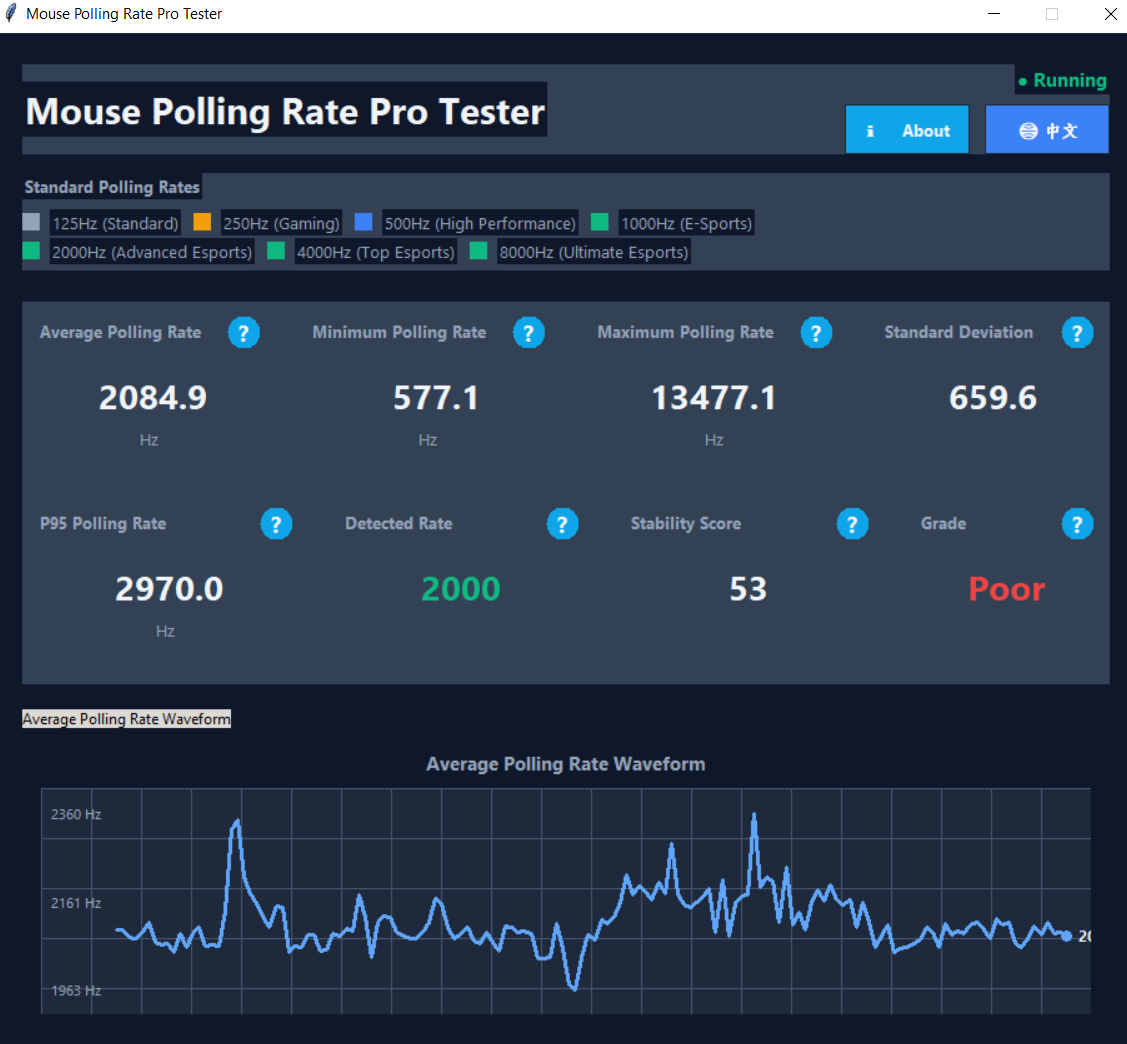
Why do you need a desktop tool?
Web testing is limited by browsers and operating systems, unable to access real polling data from the USB HID layer. Desktop tools capture mouse raw input directly through system-level APIs, providing real USB Polling Rate data.
🌐 Browser Test vs 🐍 Python Desktop Tool
📊 Data Source
Browser events (mousemove)
Limited
🔧 Data Source
System raw input (Raw Input)
Unlimited
📈 Maximum Precision
≈ Display refresh rate
~200Hz
🚀 Maximum Precision
USB real polling rate
~8000Hz
✨ Core Features
- • Real polling rate detection - Direct measurement of USB HID layer data
- • Automatic gear recognition - Smart recognition of 125/250/500/1000/2000/4000/8000Hz
- • Professional stability analysis - Standard deviation, P95 values, jitter evaluation
- • Real-time waveform chart - Visualize polling rate change trends
- • Multi-language support - English/Chinese interface switching
⚡ Technical Advantages
- • System-level access - Bypass browser limitations, communicate directly with hardware
- • Nanosecond precision - Based on Python time.perf_counter_ns()
- • Smart filtering algorithm - Automatically filter abnormal data for more accurate results
- • Real-time analysis engine - 600 data point sampling window, 150 point waveform display
- • Professional evaluation system - Stability scoring and rating assessment
🎮 Supported Devices & Polling Rate Gears
| Polling Rate | Suitable Devices | Latency | Features |
|---|---|---|---|
| 125Hz | Regular office mice | 8ms | Basic USB rate |
| 250Hz | Entry-level gaming mice | 4ms | Common game settings |
| 500Hz | Mid-range gaming mice | 2ms | High performance mode |
| 1000Hz | High-end e-sports mice | 1ms | E-sports low latency |
| 2000Hz | Advanced e-sports mice | 0.5ms | Ultra low latency |
| 4000Hz | Top e-sports mice | 0.25ms | Professional grade |
| 8000Hz | Extreme e-sports mice | 0.125ms | Flagship grade |
✅ When to use Python tool
- • Verify mouse real USB polling rate settings
- • Compare different mouse polling rate performance
- • Test oversampling rate mice (2000Hz+)
- • Professional e-sports equipment performance evaluation
🔄 When to use web test
- • Quickly check browser input smoothness
- • Compare different browser performance
- • Cross-platform basic mouse testing
- • Quick test without installation
🚀 Get Python Desktop Tool
Open source free · Professional grade accuracy · Continuously updated
Supports Windows/macOS/Linux systems